Brand check and BRANDED alerts
Every listing is checked against the protected brands list. Risky products get a clear BRANDED badge on the panel and on listing cards, so you skip them before they cost you money.

OnBuy Hunter is a free Chrome extension and web app for OnBuy sellers. Check brands instantly, see real profit and ROI on the total BuyBox price, compare Amazon and eBay prices, save products to your own private list, and share finds with your team in one chat.
Free to use. Works on OnBuy and easyshop.com. No card required.
The extension works on the product page while you browse. The website keeps your account, your saved products and your team in one place.
Every listing is checked against the protected brands list. Risky products get a clear BRANDED badge on the panel and on listing cards, so you skip them before they cost you money.
Profit is worked out on the total BuyBox price, item plus delivery, after commission, the fixed fee and VAT on the fees. Net profit and ROI sit next to every product in the panel.
Enter an ASIN or an eBay item number and Hunter fetches the live price and delivery inside your own signed-in browser, then shows it beside the OnBuy price.
Save a product with one click from the panel. Your list is private to your account, follows you across devices, and adds the Amazon or eBay source title, link, price and delivery to each saved product.
Share products, announcements and price checks with your whole team in one shared chat, with room admin controls and a Super Admin for the whole team.
The same panel, badges and profit maths work on OnBuy and on easyshop.com, which runs on the same platform.
Add OnBuy Hunter to Chrome and open any OnBuy or easyshop product page. The Hunter panel appears on the page with the brand check, profit and price tools.
Sign up here with your email or with Google. Your account is your identity, so your saved products stay private and follow you on every device.
Join your team with one shared room code, share finds in the team chat, and check Amazon and eBay prices before you buy stock.
Create a free account and open your first product page. Your saved list and your team are waiting.
Everyone on your team joins the same room with a shared room code. To invite someone, send them your room code and ask them to enter it in their Settings. Only share the code with your own team, because anyone with the code can join the room.
Roles: a member can chat, share products and use price checks. A room admin manages their own room: the announcement, and locking or removing members of that room. The Super Admin manages the whole team across every room, including the shared brands and stores lists.
These tools affect the whole team, not just your room. Only change them if you run the team. Actions that remove people, messages or names ask for confirmation first, and the wording tells you exactly what will happen.
Your settings are saved to your account. Your name and store follow you to any browser or device you sign in on.
Price Check reads a live price for one product. Give an Amazon ASIN or an eBay item number, and your extension fetches the price in your own browser and shows it here. Keep Chrome open with the extension installed and signed in on the site, or checks stay waiting.
What the results mean: Waiting means the check is queued and your extension has not fetched it yet. Price is the live price that was read. Not found means no price was found for that number, so check the number is right. Robot check means Amazon or eBay asked to prove you are human, so no price could be read. That check will be retried later. If it keeps happening, open the site in your browser and clear the check there.
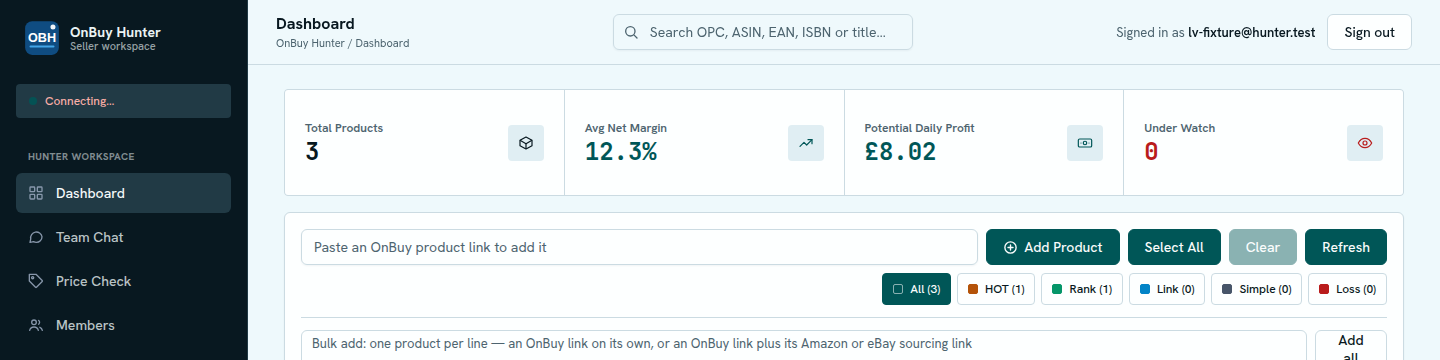
This is your saved product list. Every product you save from the extension panel, or add here with an OnBuy link, appears in this list with its selling price, its Amazon or eBay sourcing price, and the net profit worked out for you. Start by saving a product from a product page, or paste an OnBuy link in Add Product below.
Tags: HOT is a strong find worth acting on. Rank marks a product with a good sales rank. Link marks a product you still need to link to a source. Simple is a plain product with nothing special to flag. Loss means the net profit is below zero. When the profit drops below zero, Loss is applied on its own and the row turns red. It clears when the profit is positive again, unless you set a tag yourself.